

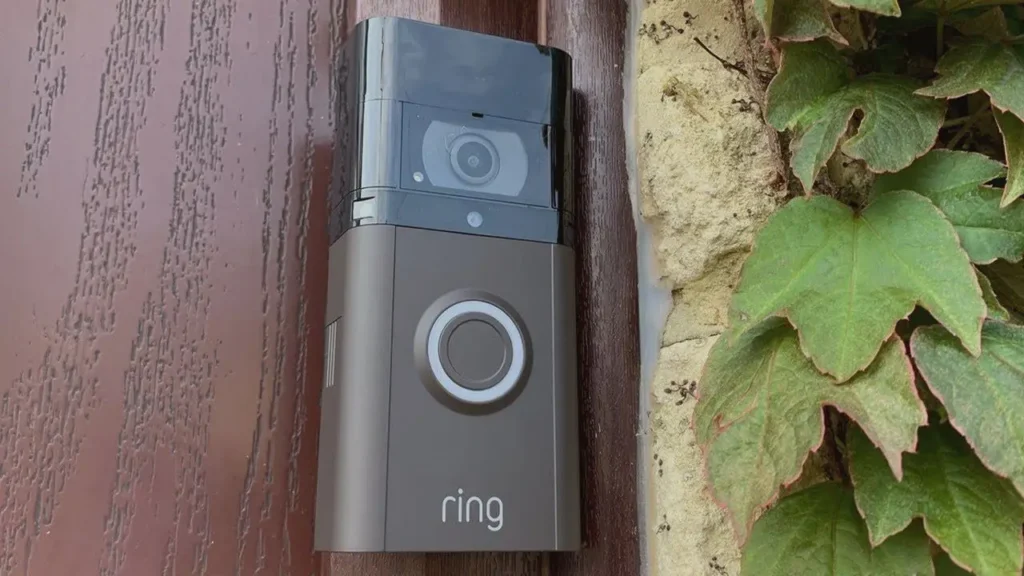
To use a doorbell camera, install it near your front door, connect it to Wi-Fi, and pair it with the manufacturer’s smartphone app. Once connected, you can watch live video, receive motion alerts, speak with visitors, and review recordings if your camera supports them.
A video doorbell helps you check who is at your entrance, even when you are away from home. To use it effectively, set up notifications, motion detection, and recording options.
This guide explains how to use a doorbell camera, from initial setup to everyday features, troubleshooting, and security settings.
How Do You Use a Doorbell Camera?
Using a doorbell camera involves five basic steps: installation, Wi-Fi connection, smartphone pairing, notification setup, and testing.
Here is how to get started:
- Install the camera: Mount it beside your front door with a clear view of visitors.
- Connect the power: Charge the battery or use compatible doorbell wiring.
- Connect to Wi-Fi: Follow the instructions in the camera’s mobile app.
- Enable notifications: Turn on doorbell-press and motion-detection alerts.
- Test the camera: Check live video, two-way audio, and recording features.
After setup, the camera can notify you when someone presses the doorbell or when it detects motion. Available features depend on the model and service plan. For more background, read our guide explaining how doorbell cameras work.
How to Set Up a Doorbell Camera Step by Step
Most video doorbells follow a similar installation process. However, power requirements, app settings, and Wi-Fi compatibility vary by model.
Step 1: Choose the Right Installation Location
Start by finding a location that provides a clear view of your entrance. Position the camera to capture visitors approaching your door while limiting unnecessary views of neighboring properties.
Before mounting, check:
- Whether the lens covers your front porch and walkway.
- Whether packages left near the door are visible.
- Whether the Wi-Fi signal reaches the installation area.
- Whether sunlight or outdoor lighting affects the view.
- Whether walls, decorations, or plants block the camera.
Follow the manufacturer’s recommended mounting height and angle. Some devices include angled mounting brackets to improve the view.
Step 2: Connect the Doorbell Camera to Power
Doorbell cameras generally use batteries or compatible electrical wiring.
- Battery-powered doorbells need charging before installation. Some have removable batteries, while others require charging the entire device.
- Wired doorbells connect to a suitable power supply, often through existing doorbell wiring.
Check the camera’s voltage requirements and compatibility with your current transformer and chime. If electrical work is required, contact a qualified professional.
Step 3: Download the Camera’s Mobile App
Install the manufacturer-recommended app. Create an account or sign in. Then select the option to add a new device. Many cameras use a QR code or setup code for pairing. Follow the instructions shown in the app until your camera is recognized. The app may request access to Bluetooth, your phone’s camera, or notifications during setup.
Step 4: Connect the Doorbell Camera to Wi-Fi
A stable Wi-Fi connection allows most smart doorbells to send notifications and stream video to your phone.
To connect your camera:
- Open the manufacturer’s app.
- Select your doorbell camera.
- Choose your home Wi-Fi network.
- Enter the correct network password.
- Follow the prompts until the device connects.
Some cameras work only with 2.4 GHz Wi-Fi, while others also support 5 GHz. Check the specifications for your model. If the signal is weak, consider improving Wi-Fi coverage near the entrance.
Step 5: Test the Camera and Notifications
After connecting the camera, check its main features. Ask someone to walk toward your front door while you watch the live feed. Confirm that the camera detects motion and sends an alert. Press the doorbell button, test two-way audio, and check whether packages left near the entrance are visible.
Next, repeat the test at night to check the image quality.
Finally, disconnect your phone from home Wi-Fi and try viewing the camera through mobile data.
If alerts arrive late or the video freezes, check the camera’s Wi-Fi connection before relying on it.

How to Use Doorbell Camera Features
Once your camera is connected, you can start using its everyday features.
- Watch Live Video From Your Phone
Live view lets you see what is happening outside your front door. Open the manufacturer’s app, select your camera, and choose the live view option.
For example, if you hear a noise outside, you can check the entrance without opening the door. Your camera needs a working connection for remote viewing.
- Talk to Visitors Using Two-Way Audio
Many doorbell cameras have a built-in microphone and speaker.
When someone presses the doorbell, open the notification and use the talk feature.
You can speak with a delivery driver, ask a visitor to identify themselves, or give instructions without opening the door.
A weak internet connection or loud background noise can make conversations harder to hear.
- Turn On Motion Detection Alerts
Motion detection notifies you when the camera senses activity near the entrance.
Depending on the model, you can adjust sensitivity, select alert types, or receive notifications for specific events.
Some cameras can identify people, vehicles, animals, or packages. These advanced features vary by model and subscription.
- Adjust Motion Zones to Reduce Unwanted Alerts
If your doorbell camera faces a busy street, passing cars and pedestrians can trigger unnecessary alerts.
Motion zones let you focus detection on selected areas, such as your front steps or walkway.
Adjust the zones in your camera app, then test whether the camera still detects visitors approaching your door.
Motion detection and phone notifications are not always controlled by the same setting. On some cameras, turning off motion alerts stops phone notifications while event detection or recording continues.
Changing a motion zone can also affect which events are recorded. Review both settings before making changes.
- Use Night Vision
Many doorbell cameras include night vision to help you see visitors in low-light conditions.
Some use infrared technology, while others support color night viewing when enough light is available.
Check the nighttime image to see whether faces and the entrance remain visible.
Nearby lights, reflective surfaces, and camera positioning can affect the result.
- View and Save Doorbell Camera Recordings
Some cameras save clips when motion is detected or someone presses the doorbell.
To review available recordings, open the camera app and look for the event history, activity, or recordings section.
Select an event to watch the video. If downloading is supported, use the app’s save or download option to keep a copy.
Not every camera provides free video history. Some require a paid plan, while others support local storage.
Also, live viewing does not mean your camera records continuously. Recording depends on the device, storage method, and service plan.

How to Set Up a Doorbell Camera for Better Home Security
A doorbell camera works best when you test its settings under real conditions rather than relying only on the initial setup.
Use this first-day security checklist.
- Check the entrance view. Make sure the camera captures people approaching the front door and the location where packages are normally placed.
- Test motion alerts. Walk through the camera’s detection area and confirm that your phone receives notifications.
- Review motion zones. Keep important areas visible while reducing unnecessary alerts from passing traffic.
- Check remote access. Open live view while your phone uses mobile data instead of home Wi-Fi.
- Test nighttime video. Confirm that you can identify activity near the entrance after dark.
- Review security settings. Protect the camera account with a strong password and enable two-factor authentication where available.
Repeat these checks after changing your router, moving the camera, or updating important settings. For homeowners who want coverage beyond one entrance, home video surveillance can help monitor other areas around the property.
Can You Use a Doorbell Camera Without a Subscription?
Yes, many doorbell cameras work without a paid subscription. However, free features depend on the device and manufacturer.
Live viewing, doorbell notifications, and two-way audio are available without a subscription on many models. Saved recordings, longer video history, and advanced detection features may require payment. Some cameras also provide local storage without a cloud subscription.
| Feature | Common availability |
| Live video | Often available without a subscription. |
| Doorbell press notifications | Commonly included. |
| Two-way audio | Available on many models. |
| Motion notifications | Often included. |
| Recorded video history | Free, limited, or subscription-based. |
| Cloud video storage | Often requires a paid plan. |
| Advanced object detection | May require a subscription. |
| Video downloads | Depends on available recordings and device features. |
How to Keep Your Doorbell Camera Secure and Private
Your doorbell camera may record visitors, deliveries, and other activity around your entrance.
Keeping that footage secure is important because connected cameras can expose personal information if accounts or networks are poorly protected.
Follow these basic security steps:
- Use a strong password: Create a unique password for your camera account.
- Enable two-factor authentication: Add an extra sign-in check where supported.
- Update the camera: Keep its firmware and mobile app up to date.
- Protect your Wi-Fi: Use WPA2 or WPA3 encryption and a strong router password.
- Manage shared access: Allow only trusted people to view the camera.
- Review privacy zones: Limit recording to areas you don’t need to monitor.
- Check video storage: Understand how recordings are saved and deleted.
Also consider the camera’s field of view and audio recording features. Follow applicable privacy and recording laws when installing and using the device.
Common Doorbell Camera Problems and How to Fix Them
Even after a successful setup, a doorbell camera can still have connection, notification, or recording problems.
Start with these basic checks.
| Problem | Possible cause | What to check |
| Camera not connecting to Wi-Fi | Weak signal or wrong password. | Wi-Fi strength and network details. |
| No phone notifications | Alerts disabled or paused. | App permissions, Focus mode, and alert schedules. |
| Live video not loading | Poor internet connection. | Check camera status, your router, and your phone connection. |
| Too many motion alerts | Wide detection zone. | Motion zones and sensitivity. |
| Two-way audio not working | Microphone permission or muted sound. | App permissions and audio controls. |
| Camera not recording | Storage or subscription limitation | Recording settings and available storage. |
| Battery draining quickly | Frequent activity or power demands. | Battery health and detection settings. |
| Poor nighttime video | Lighting or camera position. | Lens, angle, glare, and lighting. |
Can a Doorbell Camera Work With a Home Security System?
Yes. Some doorbell cameras work with compatible home security systems, letting you manage several connected devices through one platform.
Depending on compatibility, you may be able to view cameras, receive alerts, control smart locks, or manage connected lighting from one app. For example, a compatible home automation system can connect security devices with other household controls.
A motion alert does not automatically mean a professional monitoring center is watching the footage or contacting emergency services. Monitoring and response features depend on the equipment, system configuration, and service agreement.
A professionally designed home security system can combine video surveillance, intrusion detection, and other protective devices.
Protect Your Arizona Home With Titan Alarm & Fire
A doorbell camera helps you check visitors and monitor activity near your front entrance. However, one camera cannot cover every doorway, window, or outdoor area.
Titan Alarm & Fire provides video surveillance, home security systems, smart home technology, and professional monitoring solutions for homeowners in Phoenix, Tucson, Mesa, and surrounding Arizona communities. Our team can help assess your property’s security needs and explore suitable options for cameras, intrusion protection, and connected devices.
Frequently Asked Questions
Can I use a doorbell camera without Wi-Fi?
Most common smart doorbell cameras need Wi-Fi and internet access for remote viewing, phone notifications, and cloud features. Some models support local recording or limited functions without internet access. Check your camera’s specifications to understand which features remain available.
Do doorbell cameras record all the time?
No, not all doorbell cameras record continuously. Many save clips when someone presses the doorbell or motion is detected. Continuous recording is available only on certain compatible devices, often with specific power, storage, and subscription requirements.
How do I watch my doorbell camera when away from home?
Open the manufacturer’s app on your phone and select the live view option. Your camera must be online, and your phone needs internet access. You can typically watch the entrance using mobile data or another Wi-Fi network.
Can two people use the same doorbell camera?
Yes, many doorbell cameras support shared access. The account owner can invite household members through the manufacturer’s app. Where supported, each person can use a separate account instead of sharing the main password.
Why is my doorbell camera not sending notifications?
Notifications may be disabled in the camera app or your phone settings. Focus mode, notification schedules, poor Wi-Fi, or incorrect motion zones can also prevent alerts. Check these settings and confirm that your camera is online.
Do doorbell cameras work at night?
Yes, many doorbell cameras include night vision. Some use infrared light, while others offer color video when enough outdoor lighting is available. Image quality depends on the camera model, lens position, and lighting around your entrance.
Final Thoughts
Learning how to use a doorbell camera starts with proper installation, a reliable connection, and the right settings. Once connected, you can watch live video, speak with visitors, receive alerts, and review available recordings. Test motion detection, adjust notification settings, and check video quality during the day and night. Keep your account secure and update the device regularly.
A doorbell camera helps monitor your entrance, but additional cameras and intrusion protection can cover more areas of your home.
For professional video surveillance, connected security systems, and monitoring solutions in Arizona, contact Titan Alarm & Fire to discuss your home’s security needs.